Understand the current message
Summarize a thread, pull out action items, and stay oriented without digging through long email chains or losing the current Outlook context.
Built for classic Windows Outlook
Skipper Agent helps Outlook-heavy users reply, forward, search mailbox history, read attachment content, speak requests into the side panel, and take real Outlook actions without leaving Outlook. Use your own API key for OpenAI, Anthropic, Gemini, or Qwen, and if you already use Codex, you can use your Codex subscription too.
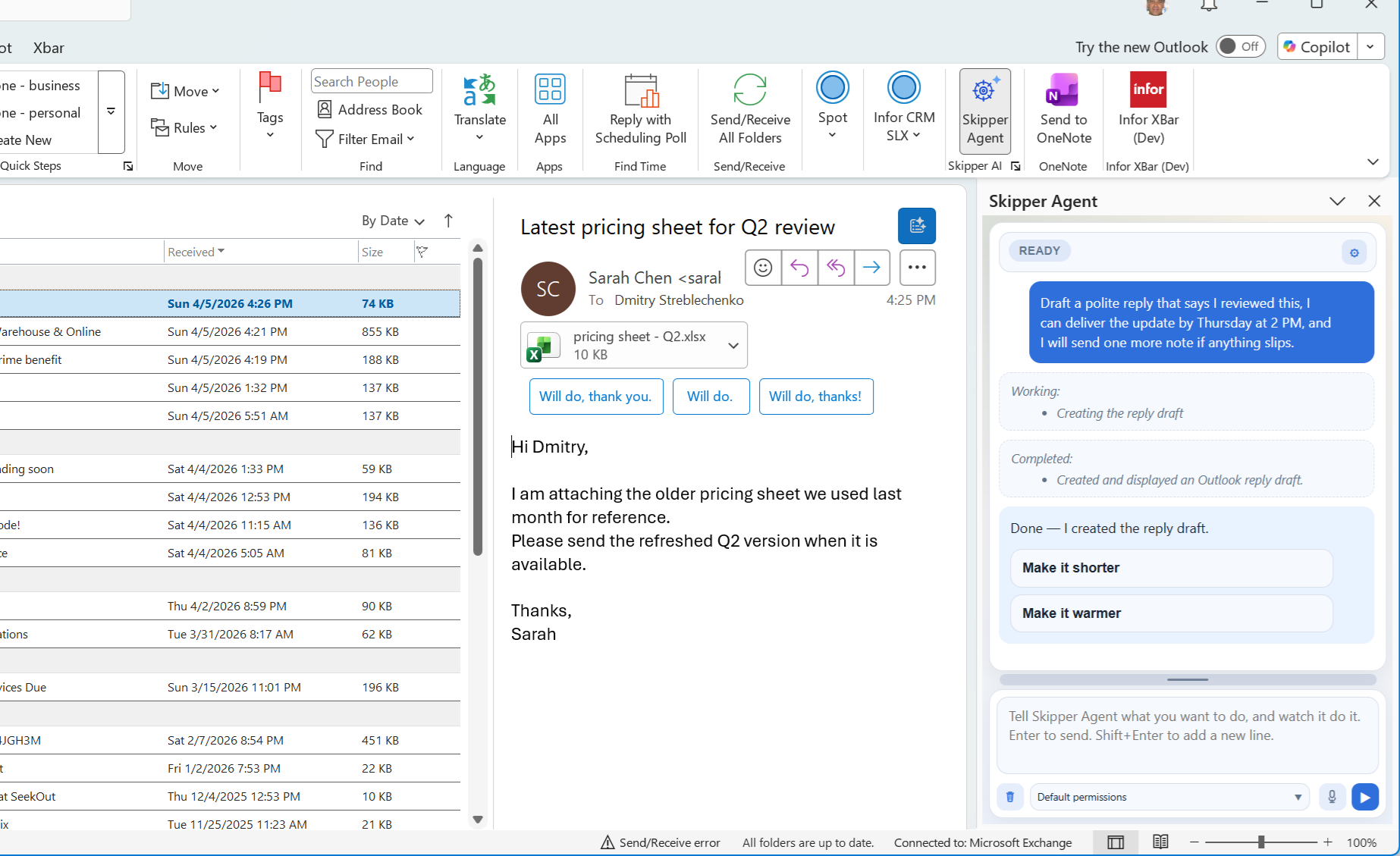
What It Does
Skipper Agent helps with the Outlook tasks people repeat every day, while staying closer to an Outlook operator than a generic summary panel.
Summarize a thread, pull out action items, and stay oriented without digging through long email chains or losing the current Outlook context.
Generate a reply, forward, or new draft, revise the Skipper-generated portion of an open unsent draft, and send the current draft when it is ready without disturbing the quoted thread or signature.
Ask for the messages you need in plain English, use semantic mailbox memory for related prior mail, show the search in Outlook, or inspect returned matches when the answer depends on exact messages.
Before drafting a mailbox-grounded reply or forward, Skipper can search your local sent-mail memory and Sent Items cache for similar prior answers, then draft from the wording, facts, and technical context you used before instead of generic model memory alone.
Use the microphone in the Skipper pane to dictate requests when speaking is faster than typing, or attach the captured voice message to a reply as an MP3.
Read the text inside common Office, PDF, HTML, ZIP, and other supported attachment types when the answer depends on the file, not just the email body.
Open native Outlook dialogs, panes, and compose commands such as Rules and Alerts, attach-file flows, recurrence, Scheduling Assistant, or formatting controls when the fastest path is to use Outlook's own UI.
When the job involves your local files or a utility step outside Outlook, Skipper can use local PowerShell-backed work instead of stopping at the edge of the mailbox.
For tasks that outgrow the small built-in actions, Skipper can generate and run C# automation against Outlook and related local .NET APIs.
Turn the current email into a contact, an appointment draft, or a task draft without manually copying names, dates, or summary details into a separate Outlook form.
Turn on workflows for newly received Inbox messages so Skipper can prepare reply actions, surface workflow-suggested next steps, and handle recurring inbox work without waiting for you to start from scratch each time.
Workflows can figure out which next actions fit a message, such as reply, create meeting, create task, create contact, or delete, instead of treating every message the same.
Why It Goes Beyond Basic Outlook AI
Skipper is not just another paragraph generator. It stays aware of Outlook context and can do real mailbox work around the message instead of acting like a floating chatbot.
When an unsent draft is already open, Skipper Agent can refine the generated draft content inside that draft instead of creating another disconnected version. It can also make exact replacements in the generated draft range for small wording changes.
For reply and forward drafts, Skipper can search local sent-mail precedent and exact Sent Items matches first, wait for those results, then create the native Outlook draft from the evidence it found.
Mailbox-memory search can combine exact text signals with local semantic matching, so a prior technical reply can still surface when the new request uses different wording.
For many users the fastest workflow is voice. Skipper supports microphone input in the side panel, so you can speak the request, review the result, attach the recording to a reply when voice is the message, and keep moving without stopping to type every prompt.
Skipper can inspect your calendar and free/busy availability before it confirms a proposed meeting time, and it uses that schedule context when preparing appointment drafts.
When the important detail is inside the attachment, Skipper can read supported files and respond from the actual document instead of guessing from the email body alone.
Set categories, apply follow-up flags, mark messages read, open the found item, move or archive mail, and keep those actions in the same Outlook-side workflow.
Skipper can open built-in Outlook UI such as Rules and Alerts, Reading Pane options, attach-file flows, recurrence, Scheduling Assistant, or native compose formatting instead of forcing everything through a text-only answer.
Ask about your Documents or Downloads folders, search local text, inspect archives, or handle other file-system utility tasks through local PowerShell execution when the answer is not only in Outlook.
If the built-in tools are not enough, Skipper can generate and execute more complex Outlook-aware C# scripts instead of giving up at the first hard case or falling back to a shallow text-only answer.
Skipper can build and update both a writing profile and an expertise profile from your Sent Items. Drafts can reflect not only how you write, but also how you previously answered similar questions and what product, technical, or business knowledge those answers relied on.
Pull a contact, a meeting draft, or a task draft out of the current message when the conversation should become something you act on, not just something you reply to.
Describe the workflow in a dedicated editor chat, review the compiled plan with scope, decision rules, and allowed actions, then test it against selected messages before you rely on it for incoming mail.
Specific Capabilities
These are product capabilities, not vague "AI assistance" claims: Outlook-aware tools mapped to real mail, attachment, file, and automation tasks.
Create a new message, reply, or forward. Then rewrite the open draft, make exact text substitutions, or send the current draft without rebuilding the whole message.
Search the current folder, subfolders, store, or local MailMemory cache, then use the exact found Outlook item as the source for the next draft or action. Semantic memory search helps find related precedent when exact keywords are not enough.
Open Outlook's own dialogs, panes, and compose commands for things like Reading Pane settings, Rules and Alerts, attach-file flows, recurrence, Scheduling Assistant, or formatting changes.
List calendar events, inspect free/busy availability, and use that schedule context when creating meeting drafts or replying about proposed times.
Apply a category, flag an item, clear a flag, mark mail as read, open an already-found message, navigate to a folder, or prepare move and archive actions inside Outlook.
Dictate prompts through the built-in microphone control when speaking is faster than typing, then continue with the same message, draft, and Outlook context on screen. After recording, Skipper can also attach the latest voice capture to a reply draft as an MP3. If your main chat provider is text-only, Skipper can use another configured speech-capable provider for voice input.
Read the contents of supported attachments when the important answer is inside the file rather than in the message preview.
Search local folders, inspect text files, work with archives, and handle utility tasks through local PowerShell-backed execution when Outlook is only part of the job.
Tell Skipper about yourself, keep known facts and preferences close at hand, and use writing plus expertise profiles built from your guidance and Sent Items so the product understands both your voice and the work you actually do.
Build a contact draft from the sender or another person in the thread, create an appointment draft from the message, or turn the email into an Outlook task draft with extracted timing and summary details.
Create and manage workflows for newly received Inbox messages, including categorization, spam detection, draft-reply preparation, inline reply-draft preparation, and suggested next actions on the message.
How It Works
Prepared by AI. Confirmed by you. Skipper can line up the work, but the final decision on meaningful actions stays with the user.
The product lives where the work already happens, with Outlook context and the selected message visible.
Summarize the thread, draft a reply, search related mail, inspect an attachment, or request a specific Outlook action.
Tool activity stays visible, and higher-trust actions like move, delete, archive, sending, or script-driven changes can remain approval-aware instead of disappearing into background automation.
Trust And Privacy
Prepared by AI. Confirmed by you. Skipper does the preparation work, while meaningful actions stay visible and approval-aware so the final decision remains with the user.
Skipper can draft the reply, prepare the meeting, organize the message, and line up the next step, but it is designed so important actions do not happen behind your back.
Bring your own API key, choose your provider, and pick the model you want to pay for. Skipper supports OpenAI, Anthropic, Gemini, and Qwen, and if you already use Codex, it can use that setup too.
The message, the draft, and the side panel all stay in view so users can see what the product is acting on.
Status, progress, and results stay legible instead of hiding the work behind a single vague answer bubble, especially for more meaningful Outlook changes that deserve a final human review.
Skipper is not limited to a generic prompt every time. You can tell it about yourself, keep stable preferences, and use profile guidance plus Sent Items learning to build both writing and expertise profiles, so drafting feels like it was written by you and shaped by the work you actually do.
Skipper Agent is for classic Windows Outlook because that is where it can do deeper, more useful work for you. The result is more capability where Outlook power users already live, not a watered-down feature set stretched across every Outlook surface.
Skipper installs locally for your Windows user. There is no server component to stand up and no Microsoft 365 admin deployment step just to try it in classic Outlook.
Download
Download the per-user MSI build for classic Windows Outlook. This is a local desktop install, so you can run it for your Windows user without a server setup or Microsoft 365 admin rollout.
Installer: SkipperAgentInstaller.msi
Per-user installer for native desktop Outlook on Windows.
FAQ
Skipper Agent supports classic Windows Outlook.
Yes. It runs in an Outlook side panel that stays next to the message and draft workflow.
Skipper is designed to do the preparation work while keeping meaningful actions visible and approval-aware. It can draft, organize, and line things up for you, but the final decision on risky or embarrassing actions stays with the user.
No server component or Microsoft 365 admin rollout is required for the standard per-user install. In a normal desktop setup, you can install and remove it locally for your Windows user. For technical readers, this is a native desktop Outlook add-in delivered as a per-user MSI rather than a web add-in that depends on tenant deployment.
Yes. Skipper is built around your own provider account, so you choose the provider, the model, and the spending level that fits you. If you want to use a smaller cheaper model, you can. If you want the latest stronger model from OpenAI, Anthropic, Gemini, or Qwen, you can do that too. If you already use Codex, Skipper can also use your existing Codex setup.
Yes. If Codex is already set up on your machine, Skipper can use that existing Codex setup instead of asking for a separate OpenAI API key.
Yes. Skipper supports microphone input in the side panel, so you can speak a request instead of typing it. Voice input works directly with OpenAI, Qwen, and Gemini. Anthropic and Codex can still use voice input by borrowing another configured speech-capable provider.
Yes. After recording, Skipper can attach the latest voice capture to the active reply draft as an MP3, or create a reply draft and attach it there.
Yes. Skipper can open a curated set of native Outlook UI flows when that is the right next step, including things like Rules and Alerts, Reading Pane options, attach-file flows, recurrence, Scheduling Assistant, and native compose formatting controls.
Yes. Workflows can suggest actions for the current message, such as reply, create meeting, create task, create contact, or delete, when the message strongly points to one of those next steps.
Yes. Skipper supports opt-in workflows for newly received Inbox messages. Built-in workflow patterns include categorization, spam detection, draft-reply preparation, inline reply-draft preparation, and suggested message actions. You can also author workflows in the workflow editor chat, review the compiled plan, and test a workflow against selected Outlook messages.
Yes. Skipper can inspect your calendar events and free/busy availability before it confirms a proposed time, and it uses that schedule context when preparing appointment drafts and meeting-related replies.
Message understanding, native Outlook drafting, open-draft revision, mail search, attachment-aware help, local file work, create-from-message flows for contacts, meetings, and tasks, and concrete Outlook actions like categories, flags, read-state changes, archive, move, and delete are all part of what it handles today.
Skipper can use a local MailMemory cache for searchable received and sent mail. Reply and forward drafting can search prior sent-mail precedent before drafting, while exact email search still returns concrete Outlook message rows when the task needs exact messages or entry IDs.
The value here is not just summary text. Skipper is for users who want native draft revision, mailbox-aware search, attachment reading, local file work, Sent Items style learning, and concrete Outlook actions in the same side-panel flow.
Yes. Skipper can do local PowerShell-backed file and utility work, plus generated C# automation for Outlook-heavy tasks that are more complex than the small built-in actions.
Yes. You can provide self-description, known facts, preferences, and drafting guidance so Skipper feels more personal than a generic assistant. It can also analyze Sent Items to build both a writing profile and an expertise profile, then search prior replies for similar situations. That helps it reuse the way you explained the issue, the facts you considered important, and the domains or responsibilities that show up in your mail.
Skipper stores your settings, API key, learnings, writing profile, and local mailbox-memory search data on your machine. API keys are encrypted locally before they are written to the local database. When you ask it to help with a message, attachment, Sent Items style analysis, or another task that needs AI processing, the relevant content goes only to the provider you selected for that work. The resulting profile and product state stay local to your Outlook setup.