Understand the current message
Summarize a thread, pull out action items, and stay oriented without digging through long email chains or losing the current Outlook context.
Built for classic Windows Outlook
Skipper Agent helps Outlook-heavy users reply, forward, search mailbox history, read attachment content, and take real Outlook actions without leaving Outlook. Sign in with your ChatGPT account to use text requests and Outlook actions without creating an API key. You can also connect your own API key for OpenAI, Anthropic, Gemini, or Qwen.
What It Does
Skipper Agent helps with the Outlook tasks people repeat every day, while staying closer to an Outlook operator than a generic summary panel.
Summarize a thread, pull out action items, and stay oriented without digging through long email chains or losing the current Outlook context.
Generate a reply, forward, or new draft, revise the Skipper-generated portion of an open unsent draft, and send the current draft when it is ready without disturbing the quoted thread or signature.
Ask for the messages you need in plain English, show the search in Outlook, or inspect a bounded set of returned matches when the answer depends on them.
Use the microphone in the Skipper pane to dictate requests when speaking is faster than typing, then stay in the same Outlook workflow.
Read the text inside common Office, PDF, HTML, ZIP, and other supported attachment types when the answer depends on the file, not just the email body.
Open native Outlook dialogs, panes, and compose commands such as Rules and Alerts, attach-file flows, recurrence, Scheduling Assistant, or formatting controls when the fastest path is to use Outlook's own UI.
When the job involves your local files or a utility step outside Outlook, Skipper can use local PowerShell-backed work instead of stopping at the edge of the mailbox.
For tasks that outgrow the small built-in actions, Skipper can generate and run C# automation against Outlook and related local .NET APIs.
Turn the current email into a contact, an appointment draft, or a task draft without manually copying names, dates, or summary details into a separate Outlook form.
Why It Goes Beyond Basic Outlook AI
Skipper is not just another paragraph generator. It stays aware of Outlook context and can do real mailbox work around the message instead of acting like a floating chatbot.
When an unsent draft is already open, Skipper Agent can refine the generated draft content inside that draft instead of creating another disconnected version. It can also make exact replacements in the generated draft range for small wording changes.
Find the exact Outlook message you need, then use that result as the source for the next reply, forward, or follow-up action instead of starting over by hand.
For many users the fastest workflow is voice. Skipper supports microphone input in the side panel, so you can speak the request, review the result, and keep moving without stopping to type every prompt.
When the important detail is inside the attachment, Skipper can read supported files and respond from the actual document instead of guessing from the email body alone.
Set categories, apply follow-up flags, mark messages read, open the found item, move or archive mail, and keep those actions in the same Outlook-side workflow.
Skipper can open built-in Outlook UI such as Rules and Alerts, Reading Pane options, attach-file flows, recurrence, Scheduling Assistant, or native compose formatting instead of forcing everything through a text-only answer.
Ask about your Documents or Downloads folders, search local text, inspect archives, or handle other file-system utility tasks through local PowerShell execution when the answer is not only in Outlook.
If the built-in tools are not enough, Skipper can generate and execute more complex Outlook-aware C# scripts instead of giving up at the first hard case or falling back to a shallow text-only answer.
Skipper can analyze your Sent Items to build a local writing profile, then use that profile when drafting so replies feel more like you and less like a canned robot answer.
Pull a contact, a meeting draft, or a task draft out of the current message when the conversation should become something you act on, not just something you reply to.
Specific Capabilities
These are product capabilities, not vague "AI assistance" claims: Outlook-aware tools mapped to real mail, attachment, file, and automation tasks.
Create a new message, reply, or forward. Then rewrite the open draft, make exact text substitutions, or send the current draft without rebuilding the whole message.
Search the current folder, subfolders, or store, then use the exact found Outlook item as the source for the next draft or action.
Open Outlook's own dialogs, panes, and compose commands for things like Reading Pane settings, Rules and Alerts, attach-file flows, recurrence, Scheduling Assistant, or formatting changes.
Apply a category, flag an item, clear a flag, mark mail as read, open an already-found message, navigate to a folder, or prepare move and archive actions inside Outlook.
Dictate prompts through the built-in microphone control when speaking is faster than typing, then continue with the same message, draft, and Outlook context on screen.
Read the contents of supported attachments when the important answer is inside the file rather than in the message preview.
Search local folders, inspect text files, work with archives, and handle utility tasks through local PowerShell-backed execution when Outlook is only part of the job.
Tell Skipper about yourself, keep known facts and preferences close at hand, and use a writing profile built from your guidance and Sent Items so the product feels more like your assistant than a one-size-fits-all chatbot.
Build a contact draft from the sender or another person in the thread, create an appointment draft from the message, or turn the email into an Outlook task draft with extracted timing and summary details.
How It Works
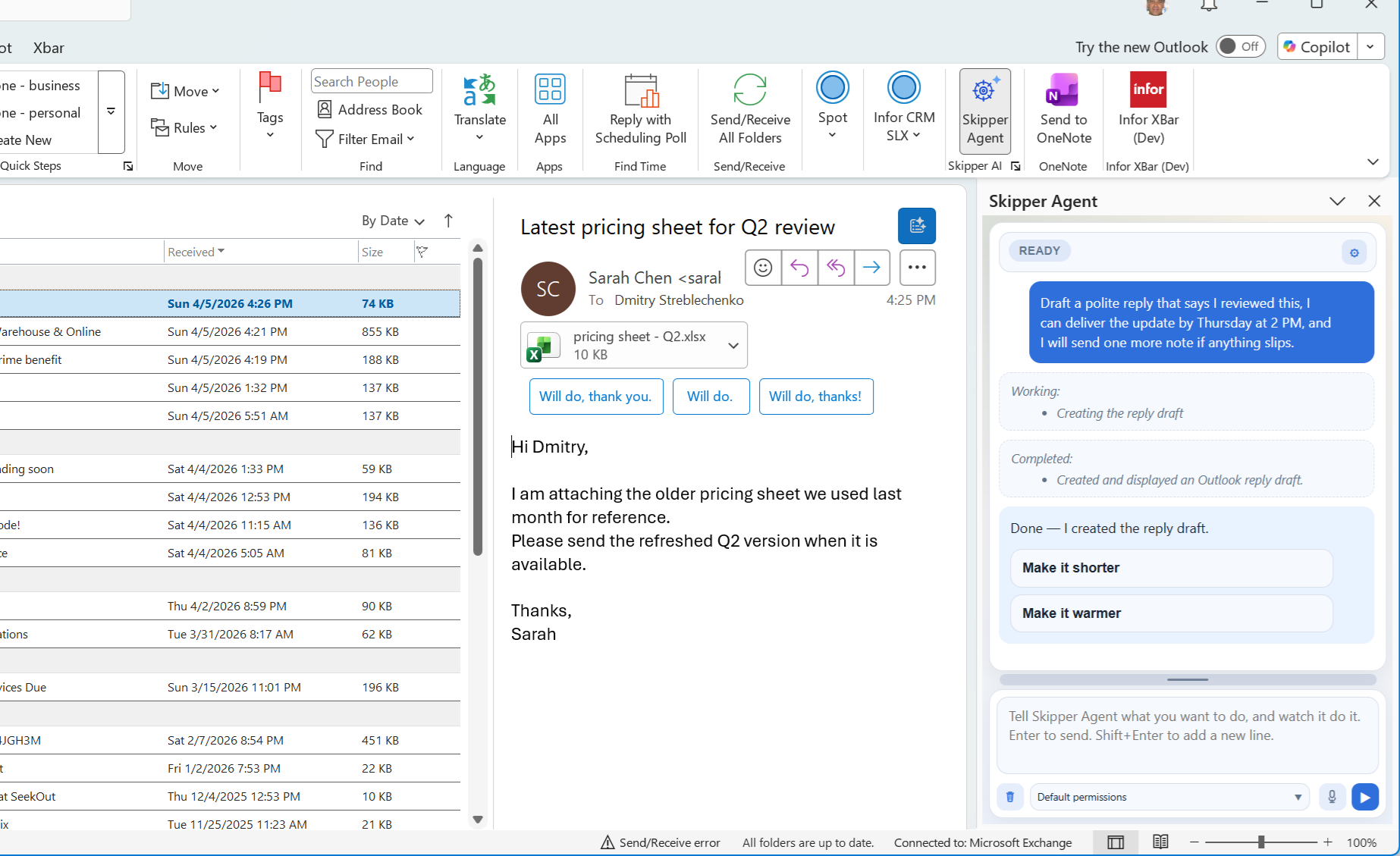
The product lives where the work already happens, with Outlook context and the selected message visible.
Summarize the thread, draft a reply, search related mail, inspect an attachment, or request a specific Outlook action.
Tool activity stays visible, and higher-trust actions like move, delete, archive, or script-driven changes can remain approval-aware instead of disappearing into background automation.
Trust And Privacy
Local profile. Your provider. No shared Skipper cloud account. Skipper keeps your settings, learnings, and writing profile on your machine. Message and document content is sent only to the provider you configured for the task, so the context that makes Skipper feel personal stays local while the AI work happens through your chosen service.
The easiest path is to sign in with your ChatGPT account through Skipper's OpenAI Codex (Local) connection, with no API key to create or paste. If you prefer, connect your own API key and choose the provider and model you want. Skipper does not lock you into one service or hide the model choice.
The message, the draft, and the side panel all stay in view so users can see what the product is acting on.
Status, progress, and results stay legible instead of hiding the work behind a single vague answer bubble, especially for more meaningful Outlook changes.
Skipper is not limited to a generic prompt every time. You can tell it about yourself, keep stable preferences, and use profile guidance plus Sent Items style learning to make drafting feel like it was written by you, not by a generic assistant.
Skipper Agent is for classic Windows Outlook because that is where it can do deeper, more useful work for you. The result is more capability where Outlook power users already live, not a watered-down feature set stretched across every Outlook surface.
Skipper installs locally for your Windows user. There is no server component to stand up and no Microsoft 365 admin deployment step just to try it in classic Outlook.
Download
Download the per-user MSI build for classic Windows Outlook. This is a local desktop install, so you can run it for your Windows user without a server setup or Microsoft 365 admin rollout.
Latest release: 0.1.28.0 September 1, 2026
Safer concurrent message handling, more reliable dictated replies, and better recovery from temporary agent and tool failures.
Installer: SkipperAgentInstaller.msi
FAQ
Skipper Agent supports classic Windows Outlook.
Yes. It runs in an Outlook side panel that stays next to the message and draft workflow.
No server component or Microsoft 365 admin rollout is required for the standard per-user install. In a normal desktop setup, you can install and remove it locally for your Windows user. For technical readers, this is a native desktop Outlook add-in delivered as a per-user MSI rather than a web add-in that depends on tenant deployment.
No. Choose OpenAI Codex (Local) in Settings, then use the Install and Sign In buttons to connect your ChatGPT account. Skipper does not need you to create or paste an API key for that path. You can also connect your own API key for OpenAI, Anthropic, Gemini, or Qwen and choose the model you want.
Yes. Skipper supports microphone input in the side panel, so you can speak a request instead of typing it. Voice input works when OpenAI, Gemini, or Qwen is configured for speech. If you use ChatGPT sign-in or Anthropic for chat, you can add one of those providers for dictation.
Yes. Skipper can open a curated set of native Outlook UI flows when that is the right next step, including things like Rules and Alerts, Reading Pane options, attach-file flows, recurrence, Scheduling Assistant, and native compose formatting controls.
Message understanding, native Outlook drafting, open-draft revision, mail search, attachment-aware help, local file work, create-from-message flows for contacts, meetings, and tasks, and concrete Outlook actions like categories, flags, read-state changes, archive, move, and delete are all part of what it handles today.
The value here is not just summary text. Skipper is for users who want native draft revision, mailbox-aware search, attachment reading, local file work, Sent Items style learning, and concrete Outlook actions in the same side-panel flow.
Yes. Skipper can do local PowerShell-backed file and utility work, plus generated C# automation for Outlook-heavy tasks that are more complex than the small built-in actions.
Yes. You can provide self-description, known facts, preferences, and drafting guidance so Skipper feels more personal than a generic assistant. It can also analyze Sent Items to build a writing profile and use that profile when drafting.
Skipper stores your settings, learnings, and writing profile on your machine. Your ChatGPT sign-in is handled by OpenAI Codex (Local), not stored by Skipper. If you choose to connect an API key, it is encrypted locally before it is written to the local database. When you ask for help with a message, attachment, Sent Items style analysis, or another task that needs AI processing, the relevant content goes only to the provider you selected for that work. The resulting profile and product state stay local to your Outlook setup.