How-To: OutlookSpy Ribbon
OutlookSpy adds its own ribbon page in Outlook so you can inspect Outlook Object Model, Extended MAPI, EWS, and Microsoft Graph data from the current Outlook context.

Working From the Current Outlook Context
OutlookSpy creates an additional ribbon in Outlook to provide quick access to the most commonly used Outlook and Extended MAPI objects. The current ribbon also includes areas for EWS and Microsoft Graph.
To inspect an object that is not exposed directly on the ribbon, start from a parent object and browse from there. Most objects displayed by OutlookSpy are delivered in context: highlight an item, folder, or message store, then click a ribbon button to inspect the selected object.
Script Editor
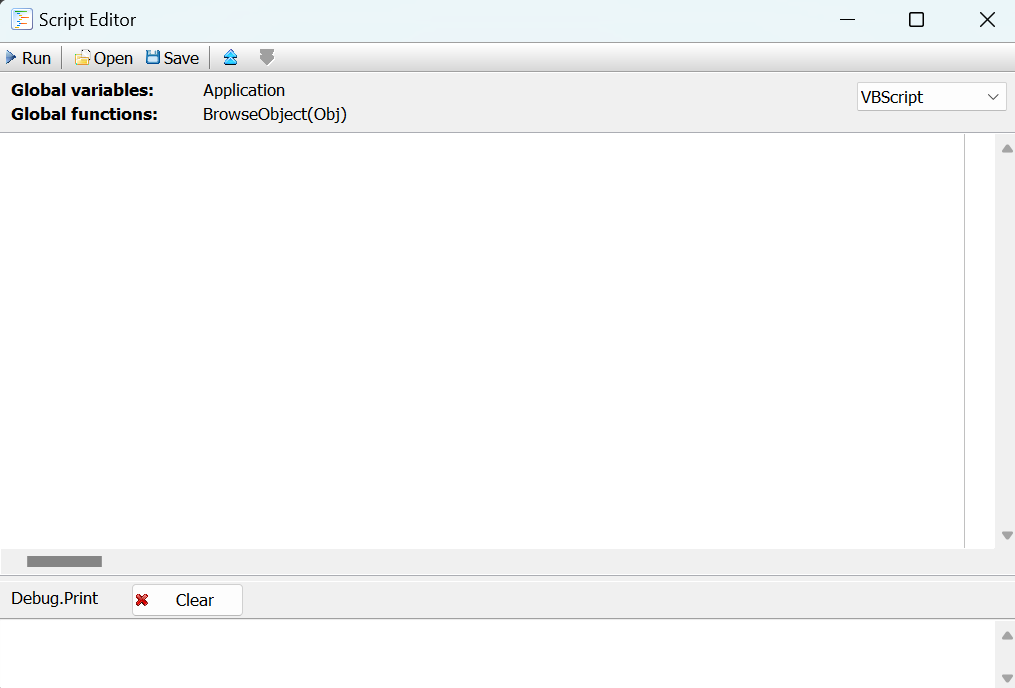
The Script Editor runs VBScript or JavaScript code against the current Outlook session.
The Outlook Application object is always available to the script.
Use BrowseObject(Obj) to inspect any IDispatch-compatible object, and use Debug.Print to write diagnostic output to the log pane below the script editor.
Outlook Object Model Interfaces
All Outlook object model interfaces, including other IDispatch-compatible interfaces, can be browsed in a similar manner. You can examine property values live, see an event log when an object exposes an events interface, and browse child objects.
To inspect an object that is not directly available on the OutlookSpy ribbon, start from a parent object. For example, to inspect the first recipient of a selected message, click the Item button, select the Recipients property, then click Browse. In the Recipients window, open the Functions tab, select the Item function, click Call, and enter 1. OutlookSpy opens that recipient in a new object browser window. This is equivalent to MailItem.Recipients.Item(1).
If you prefer a script, go to the Script tab of the MailItem object, type BrowseObject(MailItem.Recipients.Item(1)), and click Run.
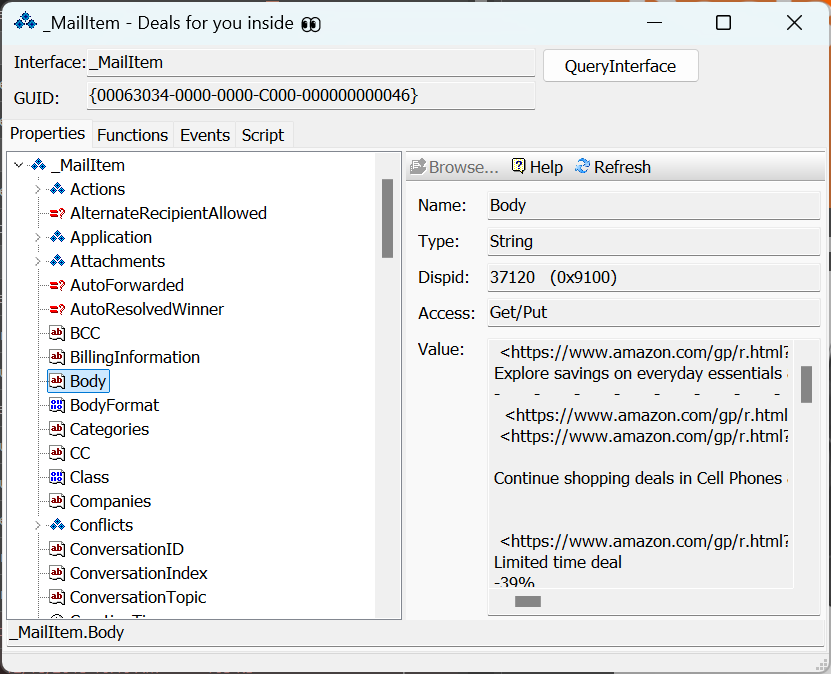
The examples below show a MailItem object.
Properties
The Properties tab shows a tree view of the object properties.
Properties that are in turn other objects can be browsed directly in the tree view or in a similar window by clicking Browse or selecting Browse in New Window from the popup menu.
The Help button opens the property help topic if Outlook VBA help is installed.
Functions
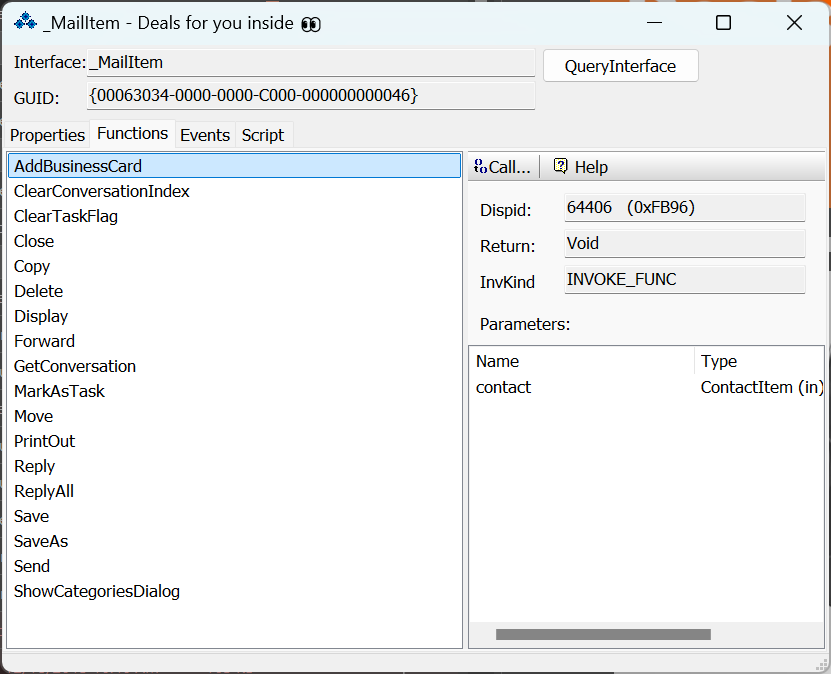
The Functions tab displays a list of functions and array properties available for the object along with required parameters.
Call opens a parameter dialog. If the function returns another object, OutlookSpy opens it in a new object browser window.
Events
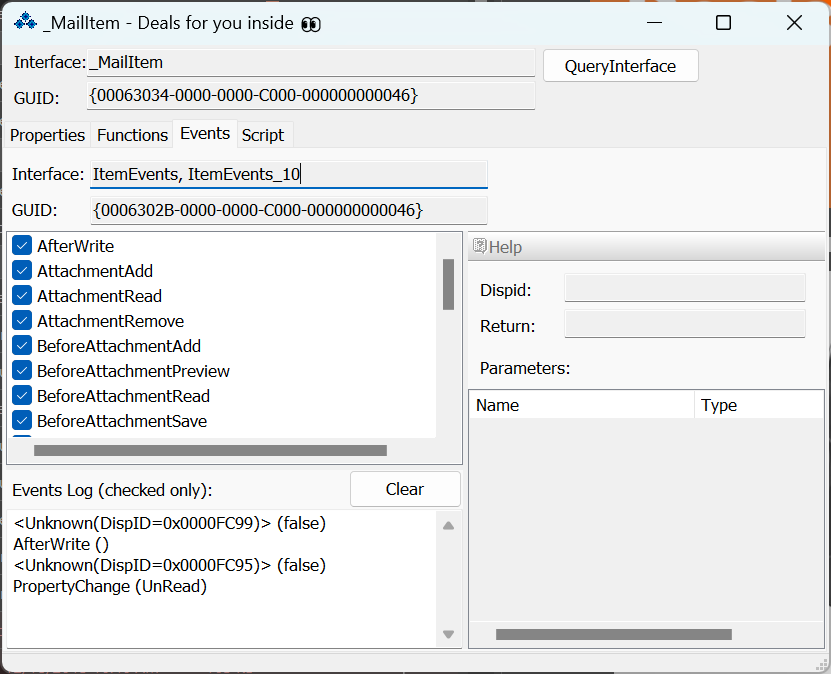
The Events tab shows all available events for the object along with the parameters passed to event handlers. If no events are available, this tab is not present.
The example shows events for MailItem along with the event log produced by reading, opening, and closing an item in a separate inspector.
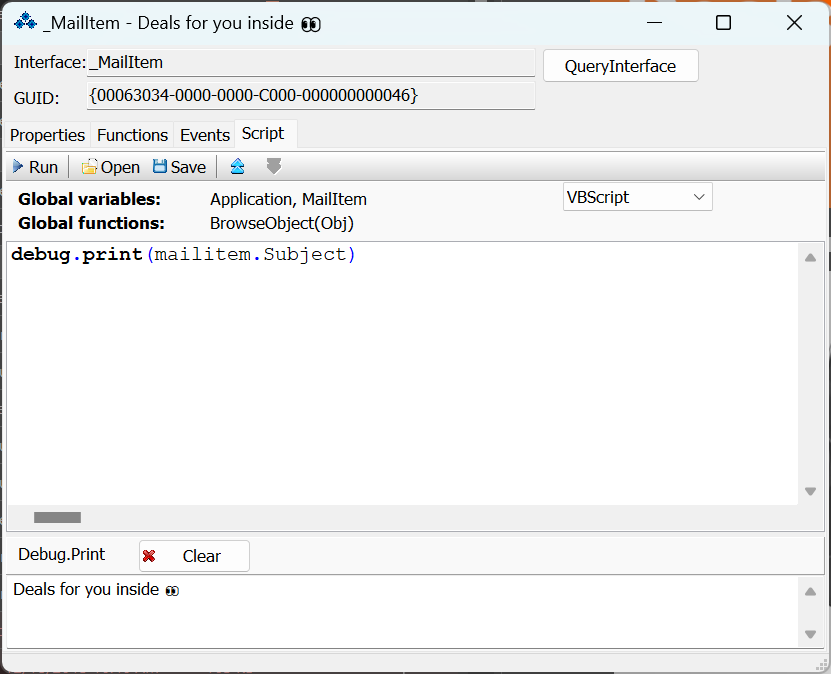
Script
The Script tab allows you to type and execute VBScript or JavaScript code. Similar to the Script Editor, ThisOutlookSession is always available along with the object being browsed (MailItem in this example).
The Script tab is intended for quick inspection and automation. Use Debug.Print for logging, MsgBox() for simple output, and BrowseObject() to inspect returned objects.
Extended MAPI Interfaces
OutlookSpy can browse and display relevant information for the following Extended MAPI interfaces:
IMAPISession, IAddrBook, IDistList, IMailUser, IMsgStore, IMAPIFolder, IMessage, IAttach, IMAPITable, IMAPIStatus, IMAPIContainer, IMAPIProp, IProfAdmin, IMsgServiceAdmin, IProviderAdmin, IProfSect, IExchangeManageStore, IStorage.
In addition, OutlookSpy displays IMAPIAdviseSink notifications for the relevant Extended MAPI interfaces: IMAPISession, IMAPIFolder, IMessage, and all IMAPITable properties, including hierarchy, contents, recipients, attachments, and other tables.
The examples below show the IMessage interface. Other Extended MAPI interfaces can be browsed in a similar fashion.
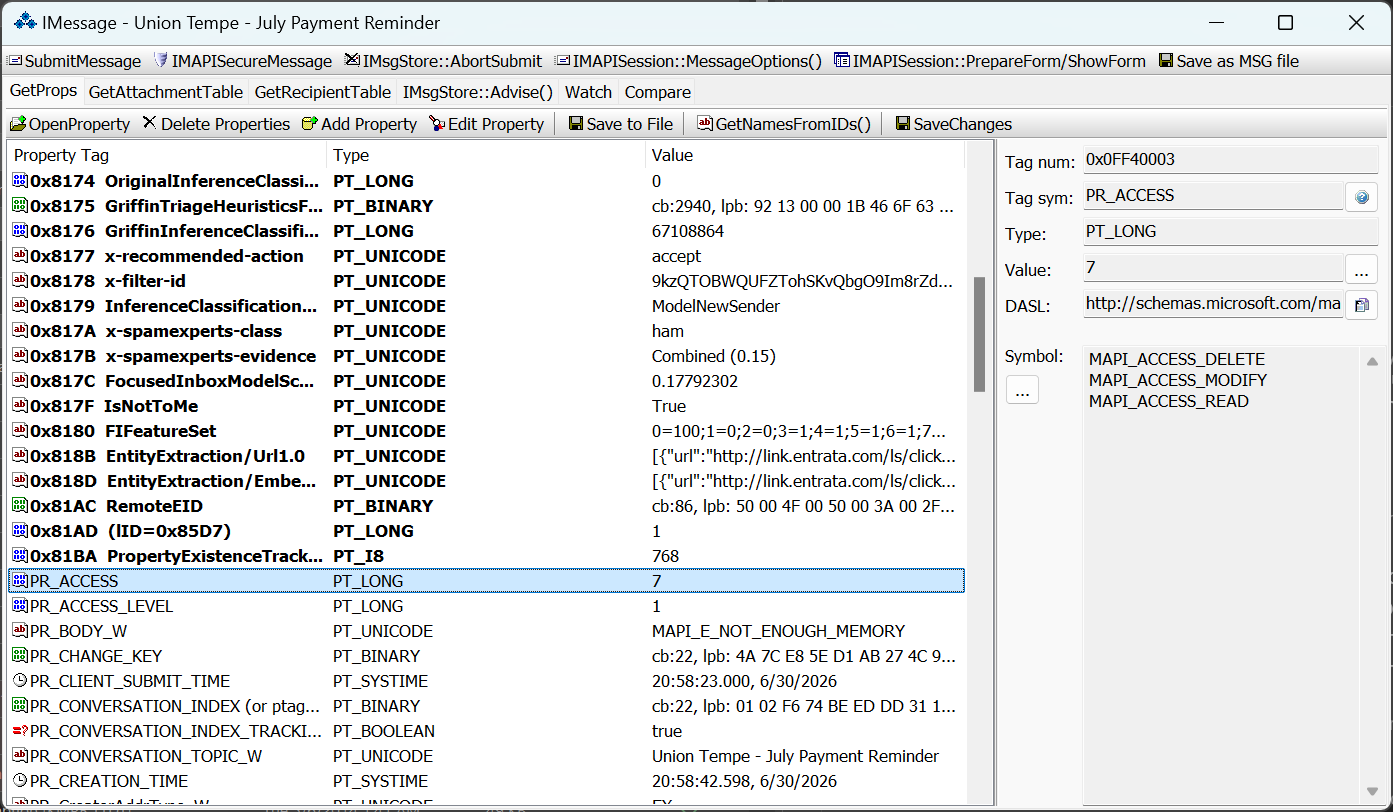
GetProps
The GetProps tab displays properties returned by IMAPIProp::GetPropList() and IMAPIProp::GetProps().
Select a property to see its tag, symbolic name, DASL name, type, value, and symbolic constants when OutlookSpy can resolve them. Named properties include their GUID, ID, and kind. PR_RTF_COMPRESSED values are decompressed and shown as raw RTF text.
The toolbar lets you open, add, edit, delete, save, and resolve property names. You can also drag selected properties from one window to another to copy them between IMAPIProp-derived interfaces.
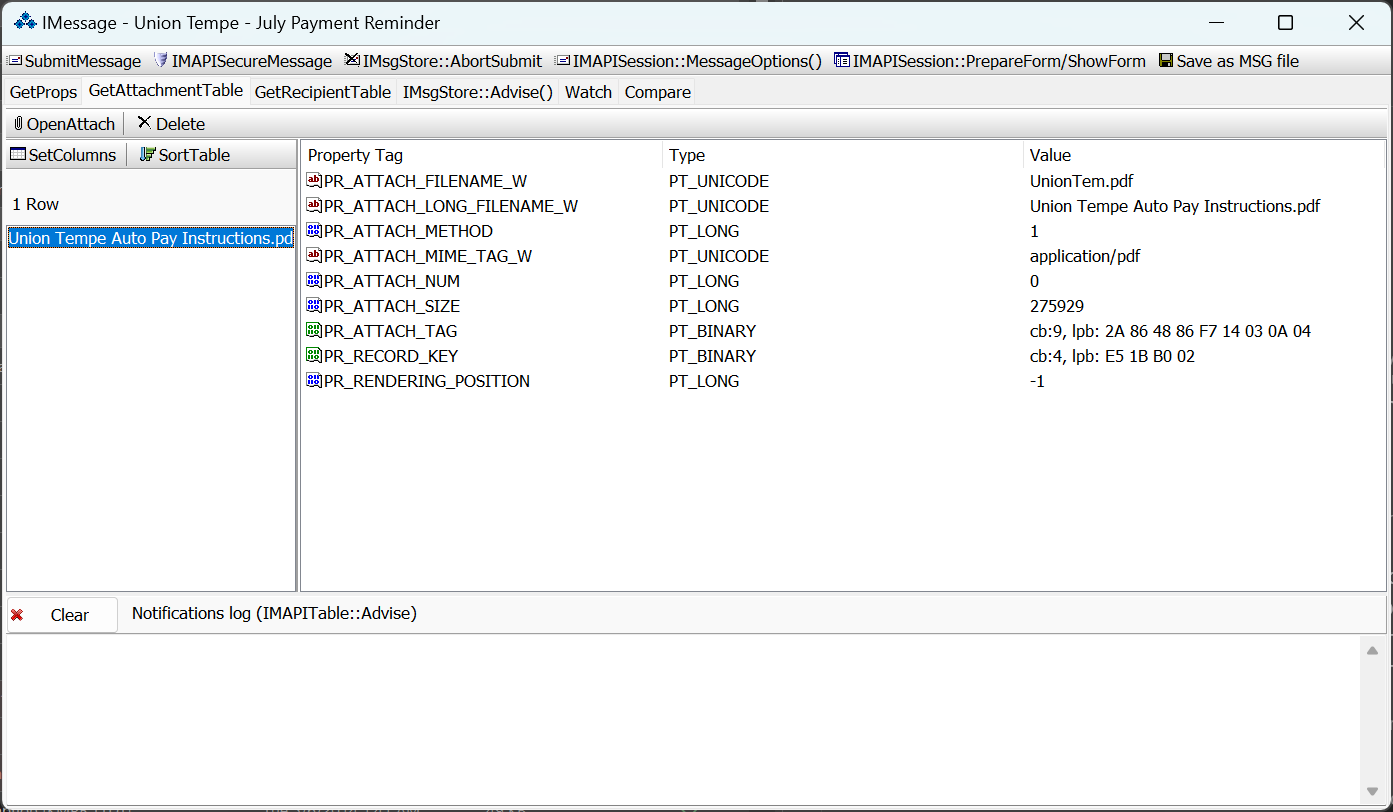
GetAttachmentTable
GetAttachmentTable shows the attachment table for the current message. Select an attachment row to inspect the MAPI properties for that attachment.
Double-click a row or use Open Attachment to browse the corresponding IAttach interface when deeper inspection is needed.
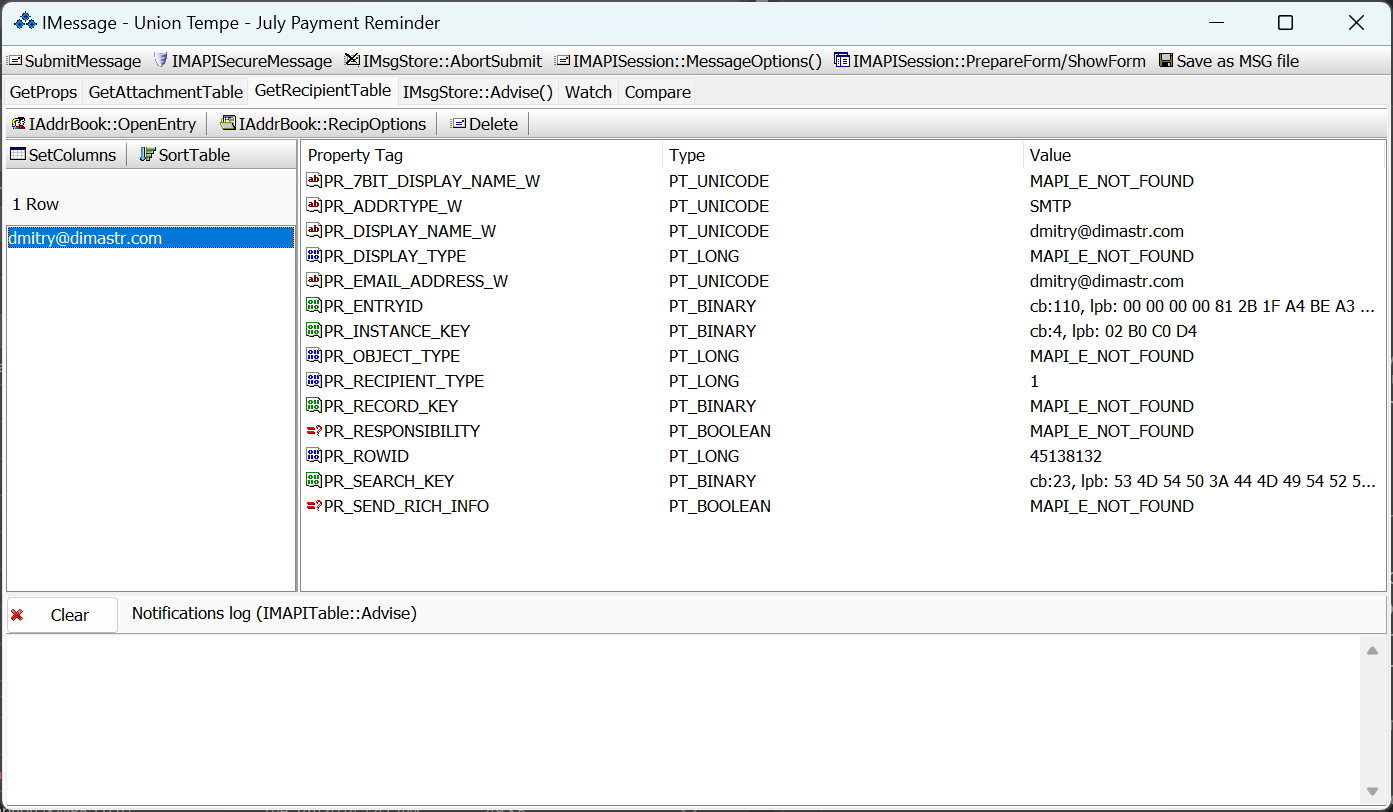
GetRecipientTable
GetRecipientTable shows message recipients and each recipient's MAPI properties, including display names, email addresses, recipient type, entry IDs, row IDs, and related flags.
Double-click a recipient or use Open Entry to browse the corresponding IMailUser or IDistList interface.
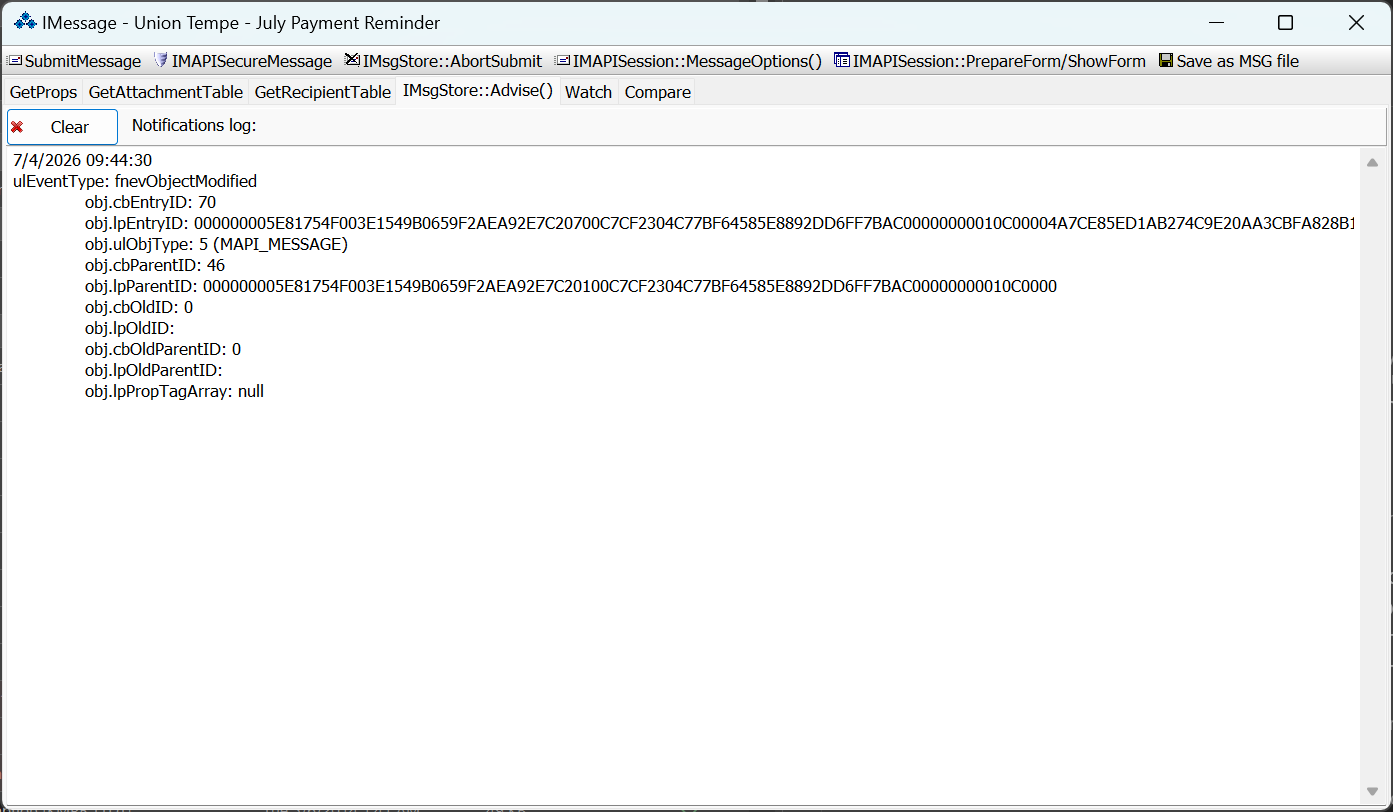
IMsgStore::Advise()
IMsgStore::Advise() shows store notifications for the selected message or folder context.
The log helps verify whether Outlook or the store is reporting object changes, including modified entry IDs, old entry IDs, parent IDs, and property tag arrays.
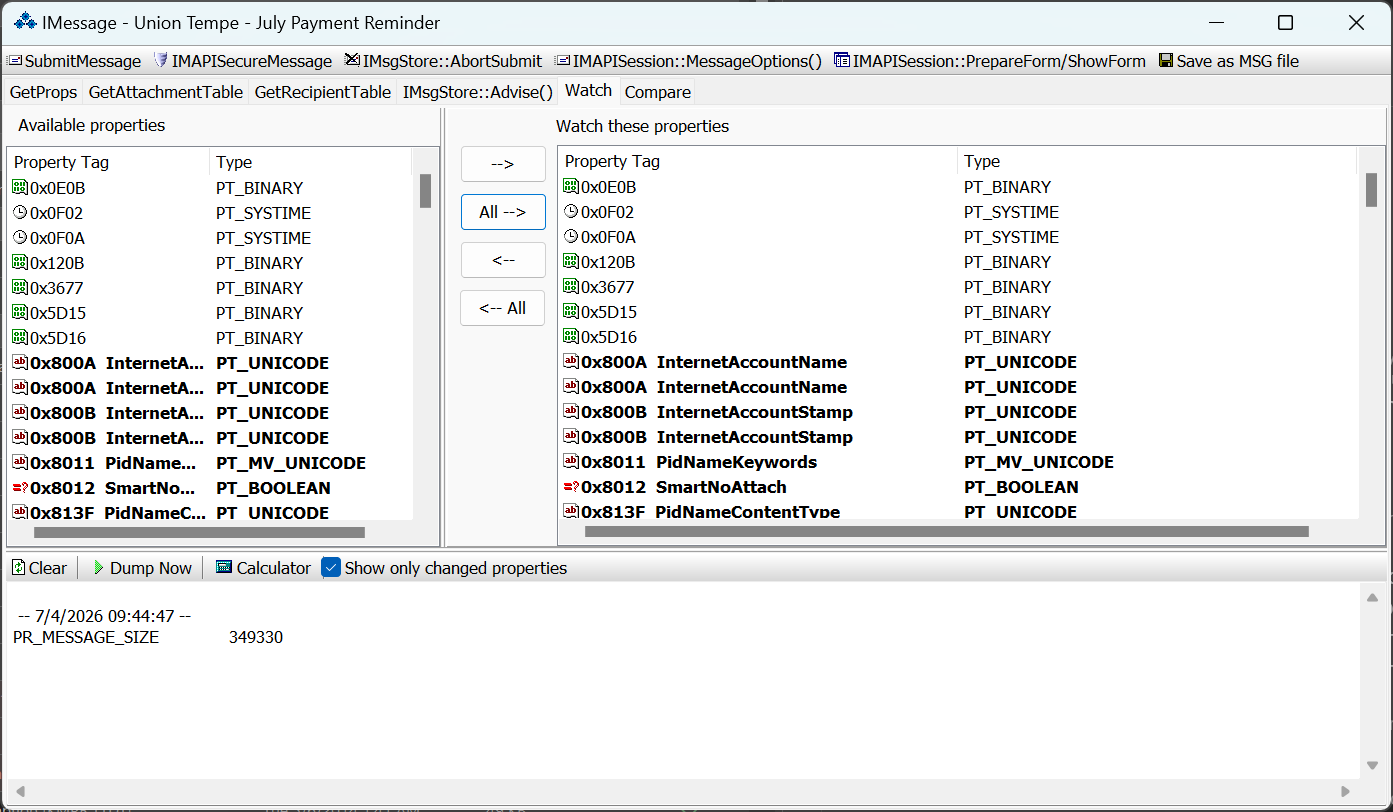
Watch
Watch tracks selected MAPI properties over time. Move properties into the watch list, then use Dump Now or the live log to see the values you are monitoring.
The Show only changed properties option keeps the output focused when you are watching noisy objects or looking for one specific change.
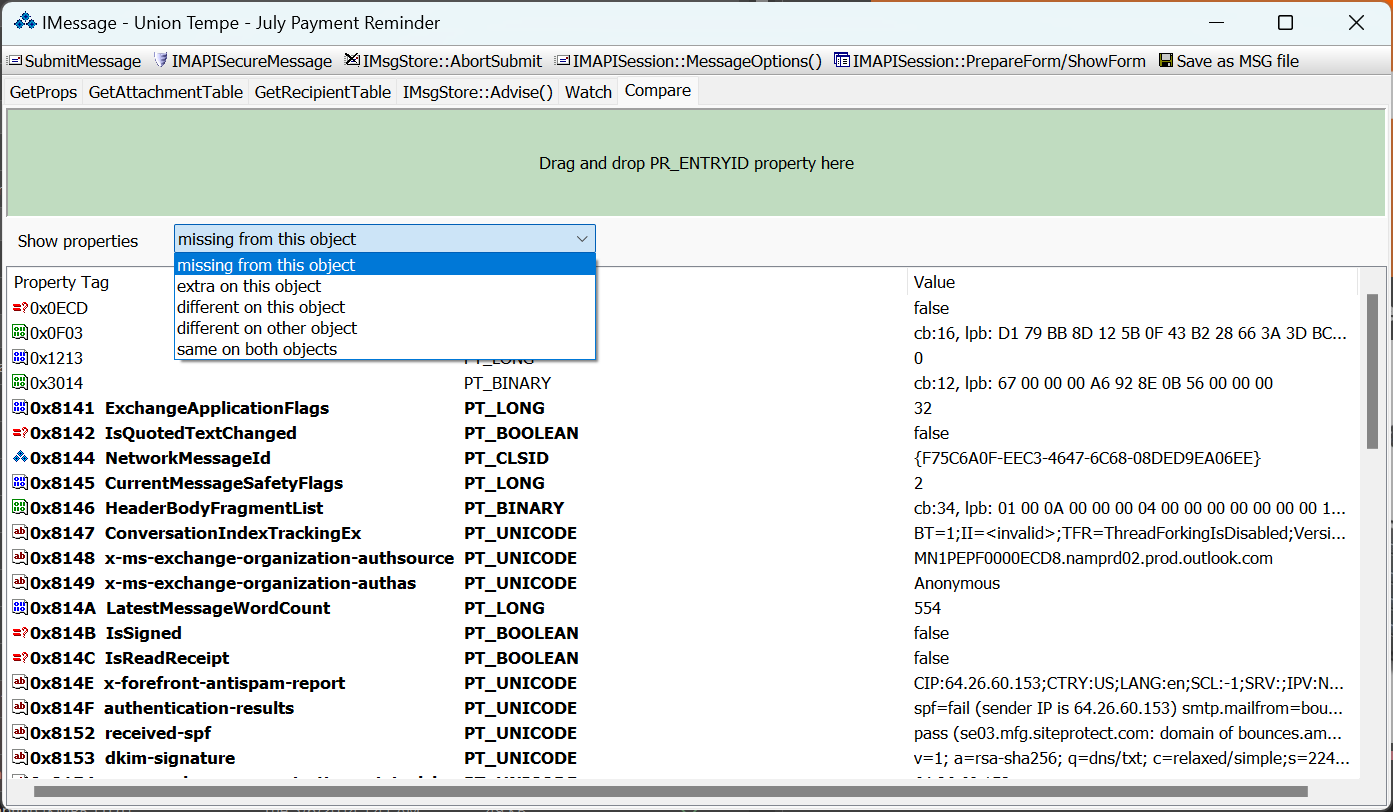
Compare
Compare lets you drop another object's PR_ENTRYID and compare property sets side by side.
Filter the result to show properties missing from one object, extra on one object, different between the two objects, or the same on both objects.
Many more Extended MAPI interfaces are supported. See the list above.
Exchange Web Services
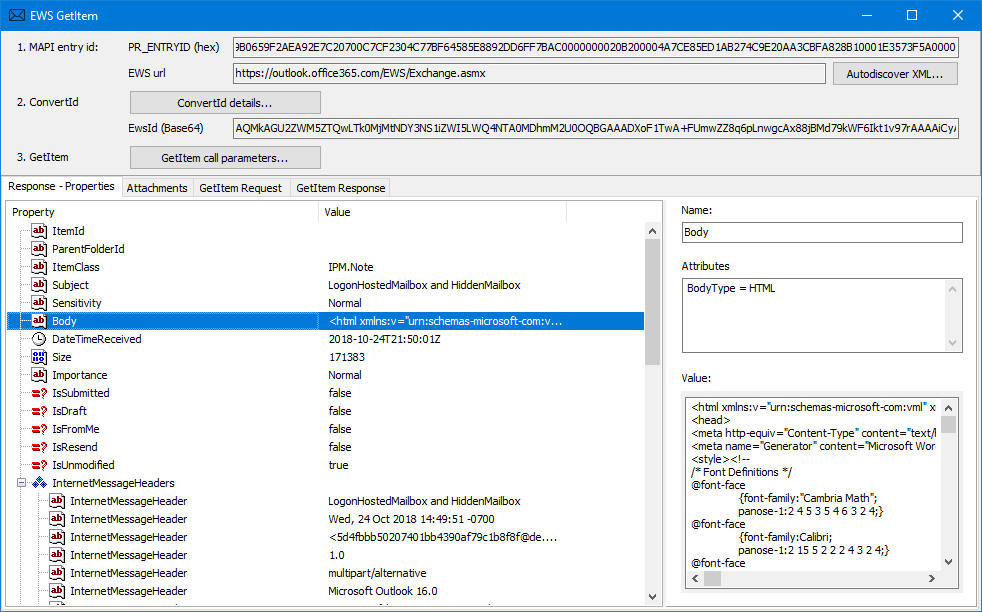
Use the EWS group to run Exchange Web Services operations from the selected Outlook item or folder.
Select a message or folder in Outlook, then use the EWS commands to inspect server-side data without switching to a separate utility or entering credentials again.
EWS is useful when you need to compare what Outlook shows locally with the item, folder, and mailbox data returned by Exchange.
Microsoft Graph
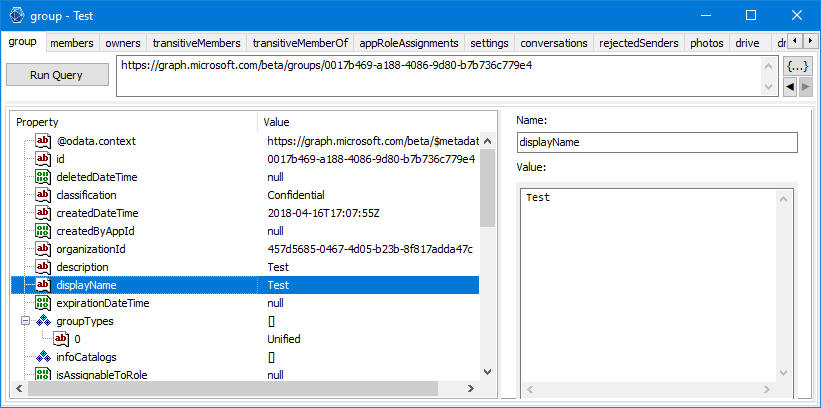
Use the Graph group to inspect Microsoft 365 mailbox and directory data through Microsoft Graph.
You can inspect mailbox, message, contact, calendar, OneDrive, OneNote, licensing, and directory data directly from OutlookSpy.
Use the Graph commands when troubleshooting cloud mailbox behavior or comparing Outlook data with the Microsoft 365 service response.