SizeTrend 4.0 connects your AI assistant to real measurements of your Windows drives and folders. Ask which applications are using the space, find large files, or investigate what grew since an earlier scan.
The connection uses MCP (Model Context Protocol), which lets an AI application call SizeTrend's local tools. SizeTrend measures the storage; your assistant uses those results to answer your question.
Connect your AI application
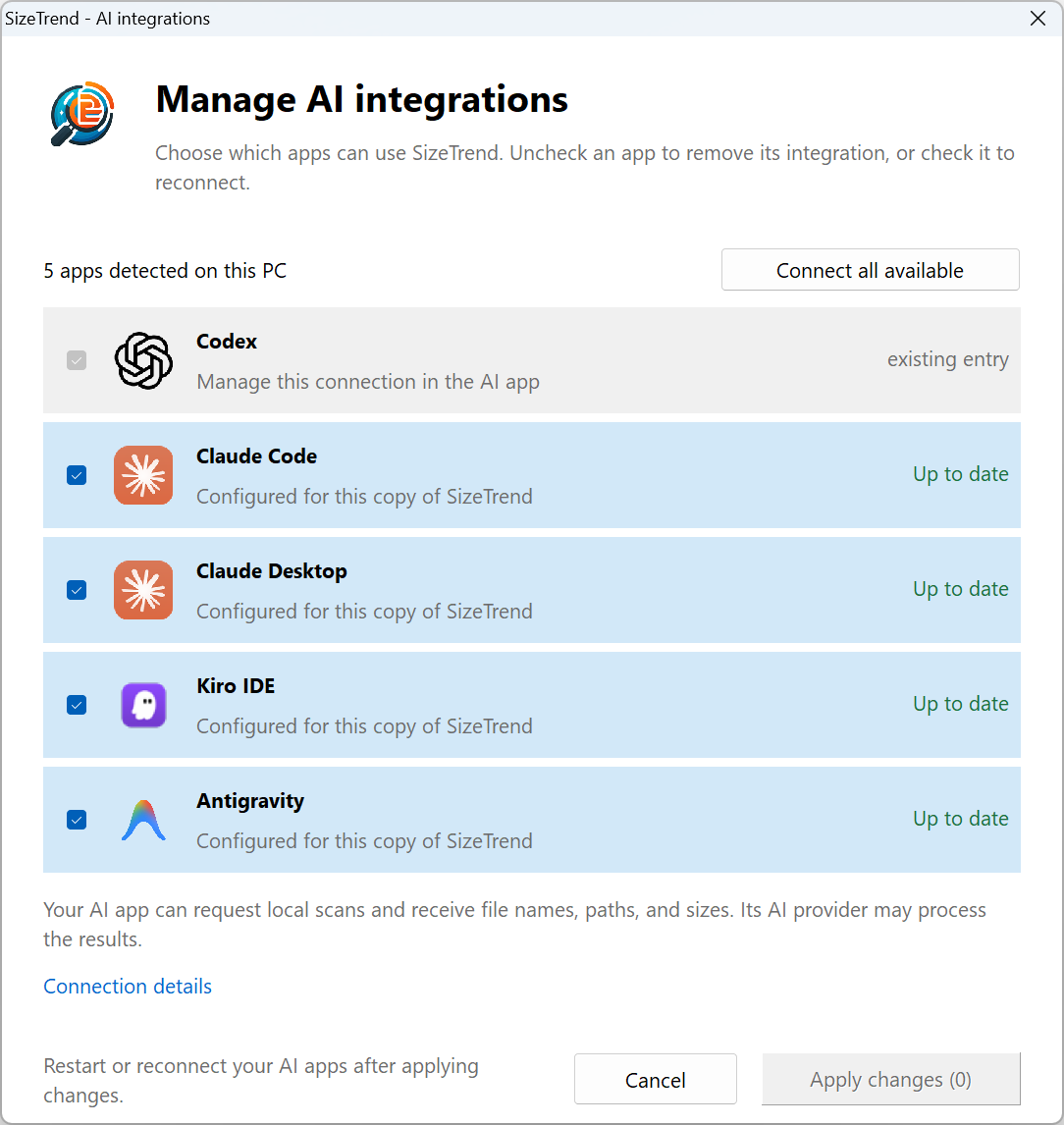
Use the connection setup built into SizeTrend. It supports Codex, Claude Desktop, Claude Code, Kiro IDE, Grok Build, and Antigravity. Install and open the AI application you want to use before configuring the connection.
Install SizeTrend 4.0 or later and open it normally.
Click AI integrations on the ribbon. You can also open About SizeTrend and click AI integrations....
In Manage AI integrations, check the applications you want to connect. SizeTrend lists the applications it detects on your PC.
Click Apply changes. If you are using the first-run Connect your AI apps dialog, the button is labelled Apply selected.
Read the results, then click Done. Restart or reconnect the selected AI application to load the tools. For Claude Desktop, fully quit the application and reopen it.
In the AI application, ask: “Use SizeTrend to tell me which version is connected.” A successful answer based on SizeTrend's tool result verifies that the connection works.
Configured means the connection settings were saved. It does not mean the AI application has connected yet. Existing conversations may need to reconnect before they can see newly added tools.
Click Connection details to see the configuration files used for the detected applications. SizeTrend adds its own connection and preserves other settings and integrations. Customized or disabled SizeTrend entries are managed in the AI application rather than overwritten.
The setup dialog lists the AI applications detected on this PC. The existing Codex entry shown here is managed in the AI app. Click the screenshot to view it full size.
Start with a fresh scan
For a first investigation, give the assistant a specific drive or folder and say what you want to learn. For example:
Use SizeTrend to scan my C: drive and explain the largest folders and applications. Keep this investigation read-only.
For fast direct scanning of a local drive, the assistant should explain the recommended administrator mode and ask before requesting it. Windows then shows its own UAC prompt. This access lets SizeTrend read filesystem metadata; it does not authorize deleting files.
If you prefer a regular non-elevated scan, say so explicitly. SizeTrend can walk accessible folders through Windows instead, although this can be slower and protected locations may be missing. Choose one folder when your question is already focused, or scan the whole drive when you do not know where the space went.
Wait for the scan and relevant analysis to finish before treating the results as complete. You can ask about progress or cancel ongoing work. The assistant's SizeTrend connection retains one current scan; scanning another location replaces it. Ask for a refresh when you need to measure changes made afterward.
Try requests that answer a real question
After the scan, follow up in the same conversation. Name the drive or folder when there could be any ambiguity.
Find the cause: “Which folders account for most of the occupied space? Show their paths and sizes.”
Understand an application: “Break down the storage used by the largest application into its installation and related data locations.”
Review Downloads: “Show the largest files in Downloads that are more than six months old. Do not delete anything.”
Find a file: “Find ISO files larger than 2 GB in this scan and sort them by occupied space.”
Check duplicates: “Find possible duplicate ZIP files by name and size. Verify matching contents before recommending which copies to review.”
Inspect logs: “Search only the *.log files in this folder for the text access denied.”
Open a location: “Open that folder in Windows Explorer so I can inspect it.”
Ordinary size and filename queries use scan metadata. Searching inside files or verifying duplicate contents reads the selected files, so request that work only when it helps answer your question. Online-only files are skipped by content searches rather than downloaded.
Matching names and sizes identify duplicate candidates; they do not establish that the contents are identical. Even identical contents do not tell you which copy belongs to a project, backup, or application.
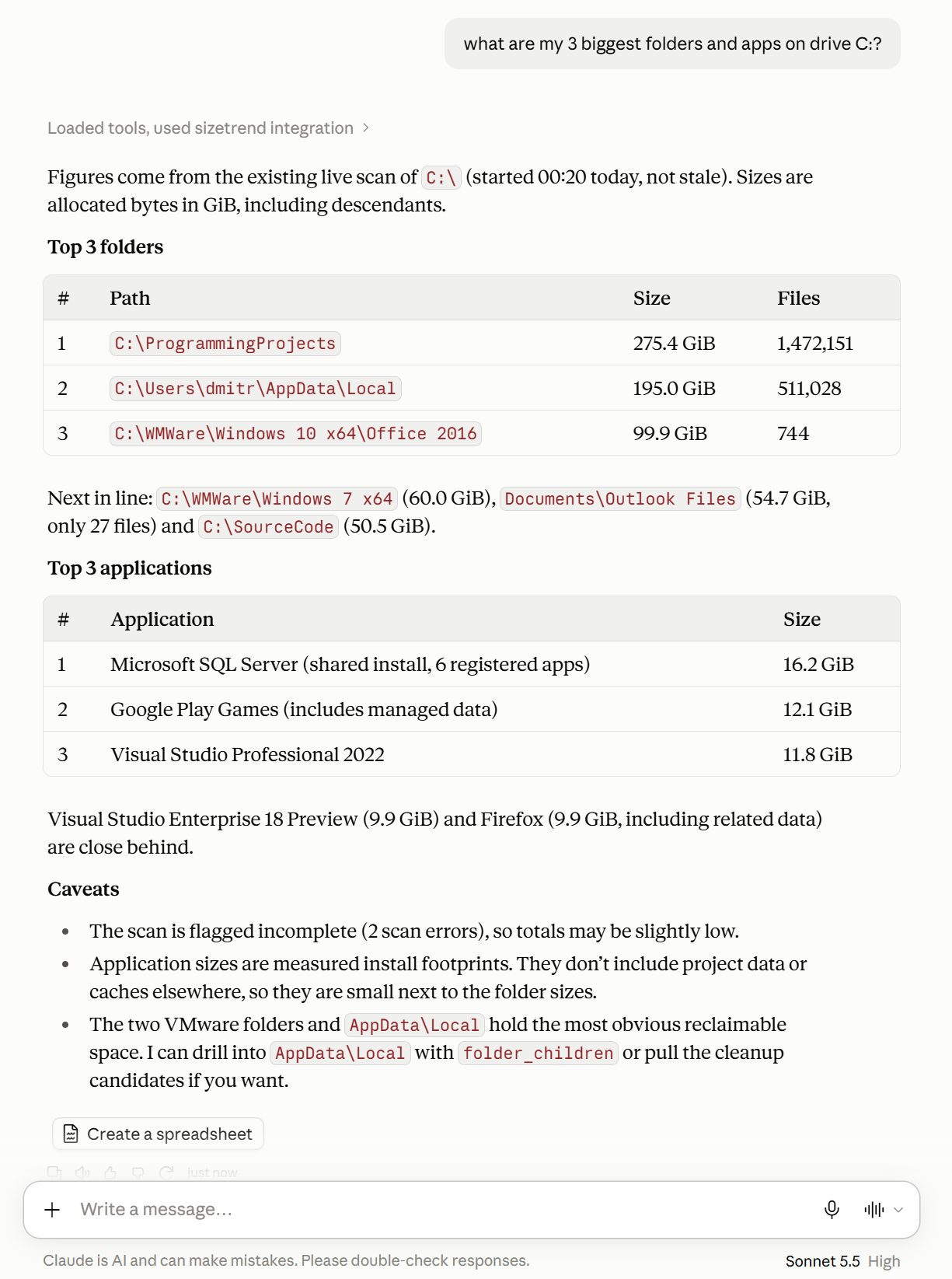
Here is an example in Claude, answering “What are my 3 biggest folders and apps on drive C?” using the SizeTrend integration:
An example answer based on a live SizeTrend scan. The paths, sizes, and scan errors are specific to this PC. Large folders are starting points for investigation; review their contents before deciding what to remove. Click the screenshot to view it full size.
Review file and cleanup actions before applying them
When you have identified specific files or a supported cleanup action, the assistant can request the operation through SizeTrend. Available actions include recycling or permanently deleting selected files, emptying a folder, creating a ZIP archive, applying NTFS compression, and invoking supported uninstallers or cache-cleanup tools.
SizeTrend shows a native confirmation with the scope and consequences. Review the paths and operation there, then approve or decline. A request in the chat does not bypass this confirmation. Some management actions open Windows or the owning application's interface, where you complete the work.
Background operations report progress and failures. A completed request may still leave locked files in place, and launching an uninstaller or cleanup interface does not prove that space was recovered. Ask the assistant to refresh the affected folder or scan and compare the new measurements.
Compare scans and export reports
For a recurring problem, ask the assistant to save a named snapshot after the scan. Later, run a fresh scan of the same location and ask what changed since that snapshot. You can also ask it to list existing saved scans and use one as the comparison baseline.
Saved scans are historical comparison baselines. Compact snapshots preserve information for ranked size comparisons; they do not provide a complete historical tree for browsing. A partial or cancelled scan also has limited coverage, so its comparison should not be presented as complete.
Try: “Export an HTML Overview report for this scan” or “Export the largest files to CSV.” SizeTrend creates a local report and returns its path. Exporting a report does not publish it or send it to somebody else.
You can ask the assistant to manage scheduled scans as well. SizeTrend's normal scheduling and edition requirements apply. See the scheduling guide for the available Windows Task Scheduler options.
Understand what the AI application receives
The SizeTrend MCP server runs locally on your PC. The AI application launches it when connecting; you do not need to run a separate server window or configure a network address.
The application can receive filenames, folder paths, sizes, application details, and other requested tool results. Its AI provider may process those results according to that application's settings and data policies. The local connection does not mean the entire conversation stays on your PC.
Use a demonstration folder when sharing screenshots or reports. Paths and filenames can reveal project names, customers, or other private information even when file contents are not included.
If the connection does not work
The AI application is missing from the setup dialog
Open it once under the same Windows account, then reopen AI integrations. A custom configuration profile or an installation that SizeTrend cannot detect may need configuration inside the AI application. SizeTrend does not install the AI application for you.
The dialog says Configured, but the assistant has no SizeTrend tools
Restart or reconnect the AI application and check again with the version request above. Fully quit Claude Desktop, including its background process, before reopening it. Check the host's MCP connection status for a startup error or a disabled server.
SizeTrend was moved, reinstalled, or updated
Open AI integrations from the copy of SizeTrend you want to use, select the connection that needs updating, and apply the changes. Reconnect the AI application afterward. If the connection was customized, review its executable path inside the AI application instead.
The assistant reports incomplete or older results
Ask whether the current scan and requested analysis have finished, and whether any locations were inaccessible. Request a refresh after file operations or other changes. After a reconnect, start a fresh live scan before asking about current disk usage; use saved scans for historical comparison.
Disconnect or change the integration
Open AI integrations, uncheck the application, and click Apply changes. SizeTrend removes only the unchanged connection entry it installed. For a customized or disabled entry, manage it in the AI application.
Reconnect or restart the AI application to end its existing connection. Removing the configuration does not immediately remove tools from a conversation that is still connected. You can return to the same SizeTrend dialog to connect the application again.
Start with a question and a fresh measurement.
Connect your AI application, scan the location, and ask SizeTrend to show the files behind the answer.